
Claude from Subscription to Ban Prevention: A Hands-On Guide (October 2026)
A practical path from subscription channels, VPS and desktop proxy, and iOS access to dual-route automatic fallback—plus what Taipei timezone and English UI language actually do.
Opus is absurdly strong for the price right now, so a Claude subscription suddenly looks like a bargain. Plenty of people say a $20 plan feels like a $100 GPT plan. That made me itchy: how do you subscribe and use Claude stably without getting banned?
Disclosure: this article includes my referral links and codes. If you sign up through them, I may earn a reward.
This is the stable setup I landed on after a lot of real testing and failed attempts. The logic is only two lines:
- Lower-risk subscription channels: a physical Starryblu debit card issued by a Singapore-licensed institution, or a US Apple account plus gift-card in-app purchase—so you avoid high-risk virtual cards;
- A dedicated egress with a hard cut when the proxy dies: run your own residential VPS exit, and let a local AI agent (Codex, Cursor, or a local terminal assistant) configure the outbound firewall, routing rules, and terminal environment. One sentence covers the requirement: when the proxy is up, use it; when it drops, cut the network immediately—never leave a path for mainland direct access to leak.
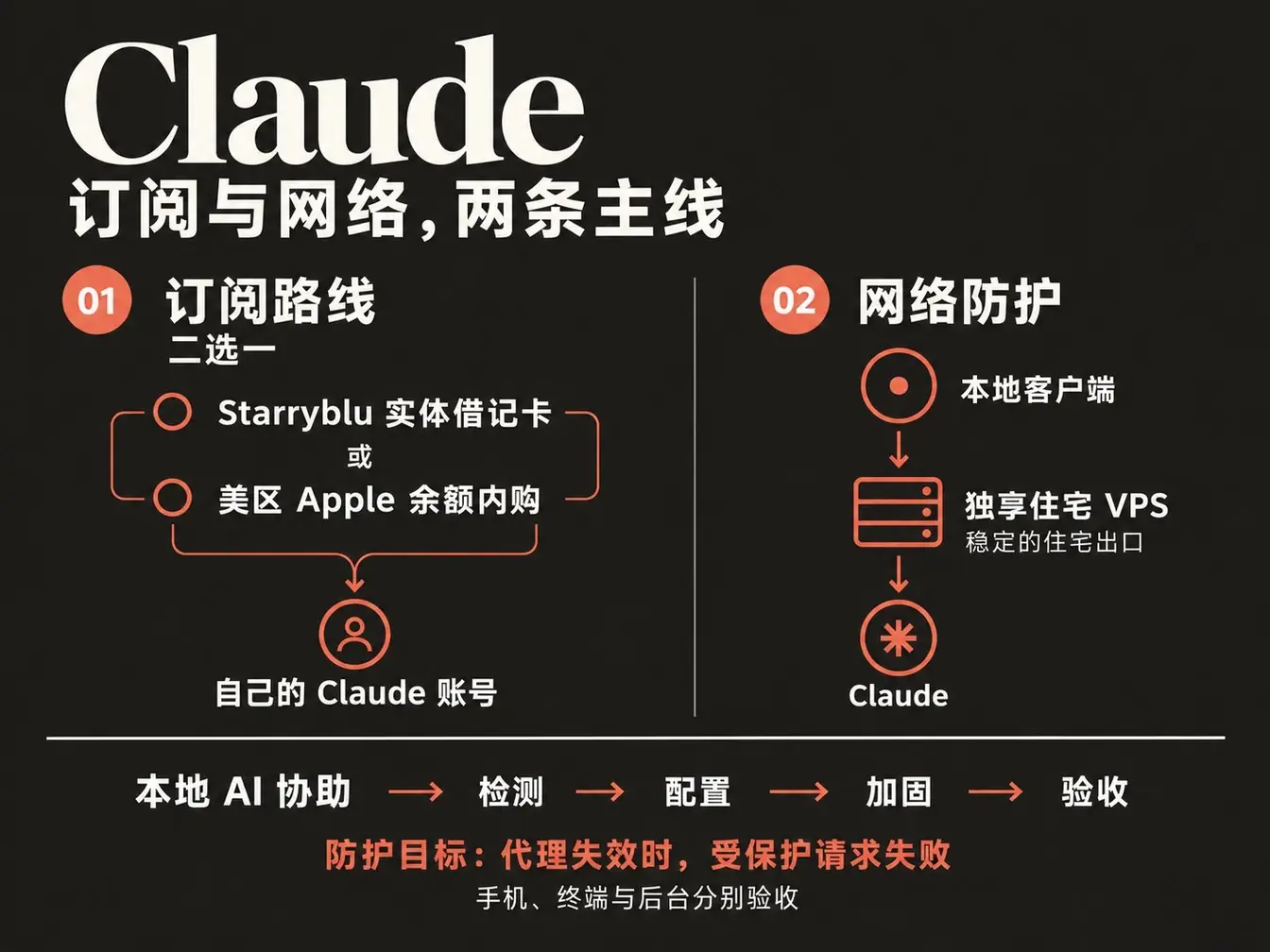
Offshore cards, proxy VPS, timezone/language tweaks all reduce risk. Clean up the technical details—no egress IP drift, no black-card guilt by association, and no direct connect after a proxy drop—and you filter out most ban triggers caused by human mistakes.
1. Pick a subscription route
Pick one route that fits you. Finish the network setup first, and register Claude with a Google account you own.
| Channel | Prep | Billing | Best for |
|---|---|---|---|
| Starryblu debit card | Valid mainland China passport; funding channel (same-name Hong Kong bank card recommended) | Bind and manage on Claude web | Desktop web users with a passport or HK card |
| US Apple account | iPhone or iPad; your own US Apple ID; Alipay for US gift cards | Official Claude iOS IAP; Apple manages billing | Apple users who do not want an offshore bank card |
If you already have a working offshore physical card, use it—no need to open a new account. Without iPhone/iPad you can also use Android Google Play gift cards; the underlying idea matches Apple IAP.
Order matters: learn the subscription options first, but in practice finish sections 2–3 (network + cutoff acceptance) before you register and pay.
Suggested cadence:
- Accept the network while logged out: finish desktop (section 2), phone if needed (section 3), and optional relay (section 4);
- Log in and smoke-test: after the network passes, sign in (prefer a long-held Google account) and send one test message on web or app;
- Check tax-inclusive price and payment terms, then pay;
- Accept paid features: after Pro is active, configure and accept Claude Code / background work that needs Pro.
Option A: Starryblu debit card on Claude web
Starryblu is a product under Singapore’s WoTransfer Pte Ltd, the same group as Panda Remit.
The key difference: it is a regulated fiat multi-currency account and debit card system, not a crypto virtual card. WoTransfer Pte Ltd holds a Monetary Authority of Singapore (MAS) Major Payment Institution licence (check the MAS directory).
Account and card tips
- Signup and card perk: use my referral link https://sg.starryblu.com/x/1nouk5yO, or enter code MPFK02H in the app. Current promos often give from SGD 50 spending credit toward later charges.
- Network while applying (hard-won tip): switch your proxy to a Global Singapore node and confirm the public egress is Singapore before opening the app. Switch back after the card is issued.
- KYC: mainland China passports work. Use your real passport; Chinese ID is not a substitute. Name and pinyin must match the passport.
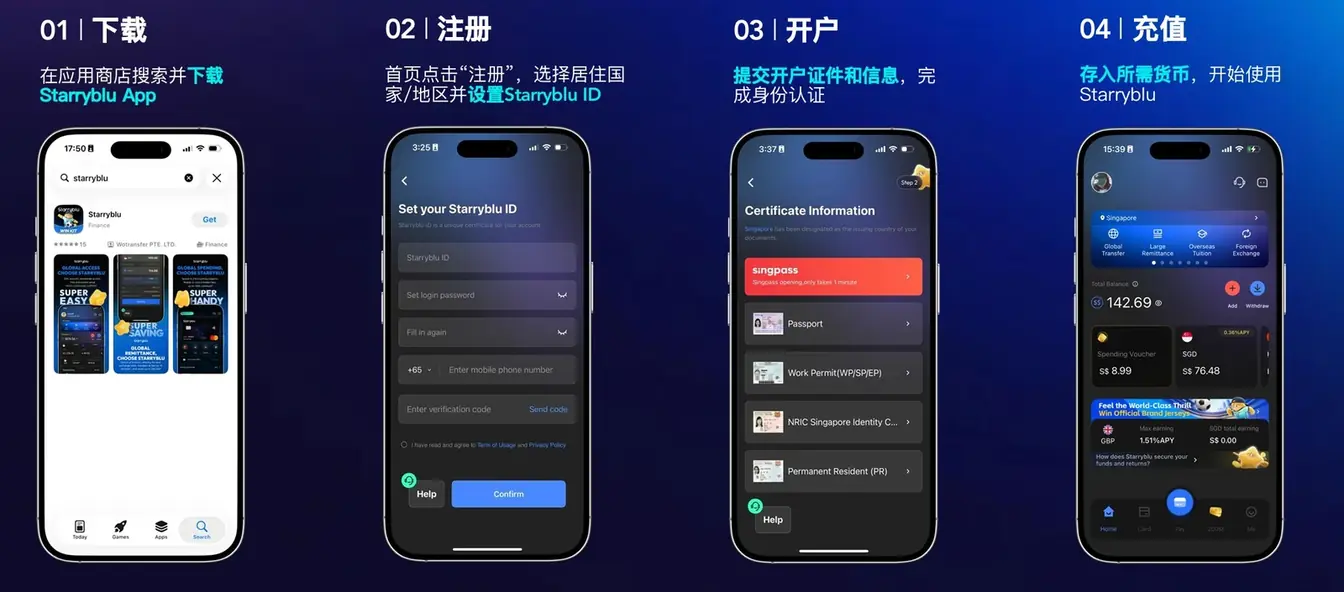
- Funding (best: same-name HK FPS):
- Choose Hong Kong → FPS;
- Transfer from your same-name Hong Kong bank (BOCHK, HSBC, ZA Bank, etc.) to the payee code on the top-up order;
- Same-name FPS is usually free on the bank side; the platform still has FX spread. Leave a small buffer, test with a tiny transfer first, then fund the rest.
- Membership and physical card:
- In-app, the usual path is about USD 19.99/month “planet card” membership, then request a physical card shipped to a real mainland address that can receive parcels; you can cancel membership later;
- Physical cards carry more weight than virtual-only cards. Activate in the app when it arrives.
Bind the card on Claude web
Only after network acceptance passes and you can log in:
- Open claude.ai and sign in;
- Avatar → Settings → Billing → Upgrade plan;
- Pick a monthly plan; enter card number, expiry, CVC; use a US tax-free state billing address.
Option B: US Apple account + Alipay gift card (official iOS IAP)
If you have an iPhone or iPad, prefer this route. Apple IAP skips web credit-card risk checks; Apple settles the charge. After purchase on phone, log into the same Claude account on desktop.
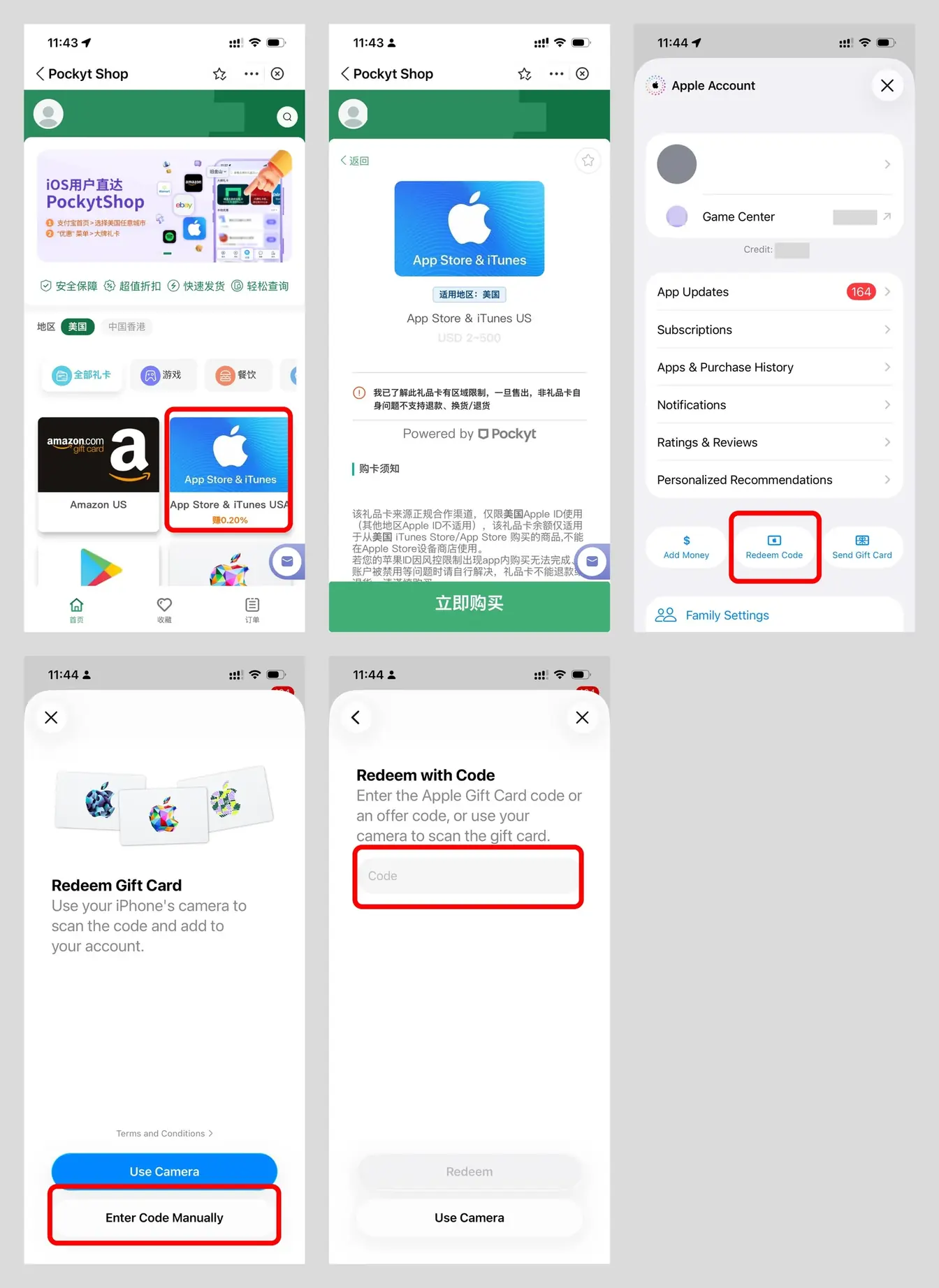
Your US Apple account → buy US gift card via Alipay → redeem to Apple balance → Pro via official Claude iOS app1. Prepare your own US Apple account
Sign into the US account only for App Store media & purchases. Do not buy shared accounts online.
2. Buy a US gift card
- Search Pockyt Shop in Alipay (or open Pockyt Shop) and open Apple Gift Card US;
- Pay with Alipay; confirm the product is United States / US;
- Pick a denomination; get the code from the order page. E-gift cards are non-refundable—keep the code safe.
3. Redeem
App Store → profile → Redeem Gift Card or Code, enter the code, confirm balance.
4. Buy inside the official Claude iOS app
- With proxy on, open Claude, sign in;
- Upgrade to Pro and pay with Apple balance;
- On desktop web, sign into the same account and confirm Pro is live.
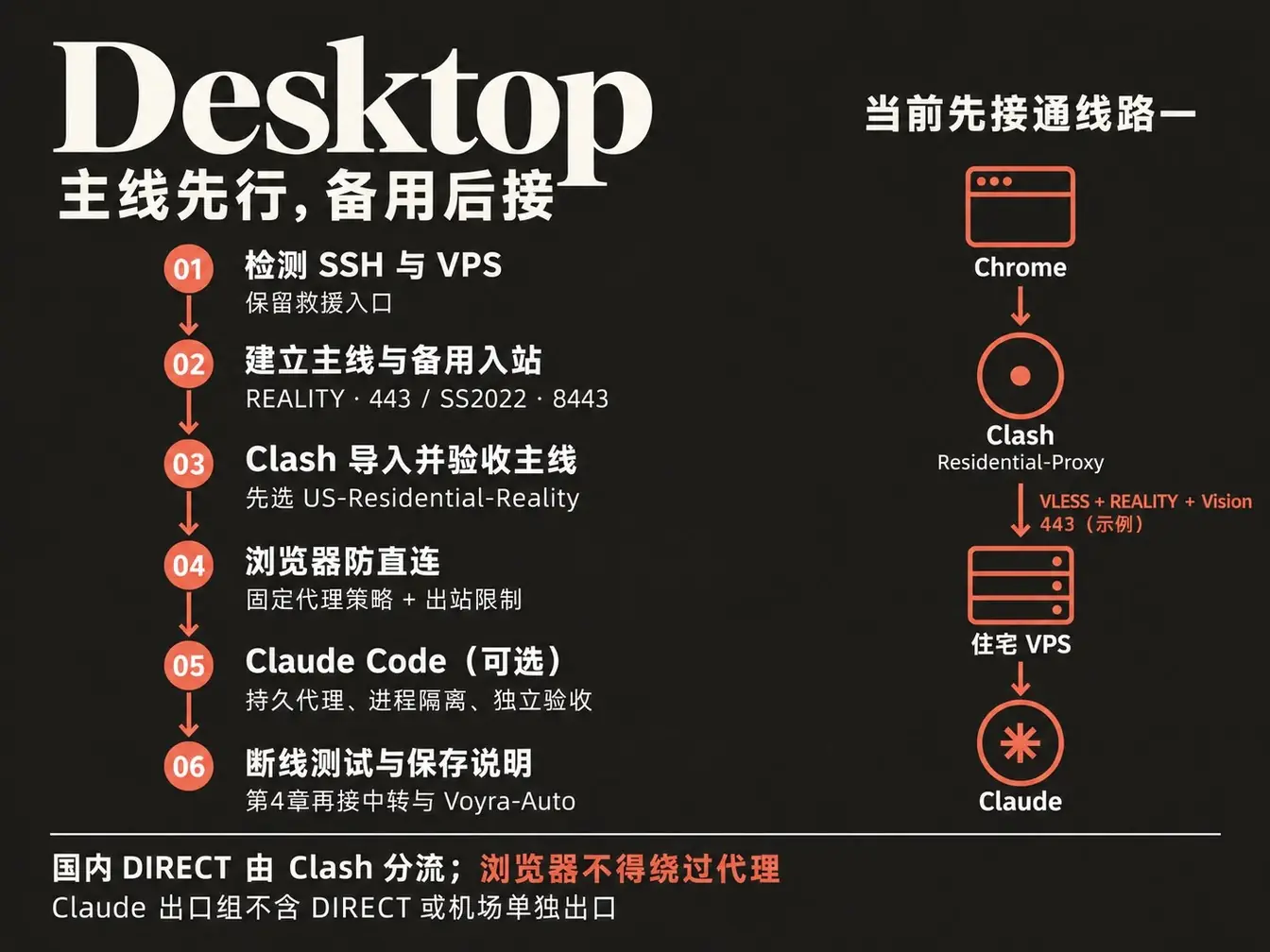
2. Configure VPS + desktop proxy step by step (dual route + anti–direct-connect)
You gate acceptance and UI checks; the AI does detection, config, and live tests.
Important—three times:
If the steps below look dense, paste this article into Codex or another agent and let it configure for you.
If the steps below look dense, paste this article into Codex or another agent and let it configure for you.
If the steps below look dense, paste this article into Codex or another agent and let it configure for you.
For stability, speed, and safety I do not use a single-node shortcut. The setup I settled on is primary + backup dual routes with automatic fallback: by default a fast, well-camouflaged direct main path; when the international backbone jitters, fail over in seconds through an airport relay onto the same residential VPS.
Name the two routes and their default roles
| Role | Clash name | Protocol / example port | Path | When |
|---|---|---|---|---|
| Route 1 (default primary) | US-Residential-Reality | VLESS + TCP + REALITY + Vision, 443 | PC → same Voyra residential VPS → Claude | Default whenever health checks pass |
| Route 2 (backup relay) | Voyra-Relay | SS2022, 8443; dialer-proxy → airport entry | PC → airport entry → same Voyra VPS → Claude | Auto when primary fails; or manual test |
Three iron rules:
- Both routes reach the same VPS; egress is always that dedicated residential IP. Anthropic always sees one stable residential IP—no hopping across datacenter nodes.
- Protocols and credentials are independent: 443 = VLESS + REALITY (UUID / pubkey / Short ID); 8443 = SS2022 (its own key). Keep ports and protocols isolated.
- Policy groups:
Residential-Proxy: outer select group; Claude rules point here;Voyra-Auto: fallback group with Route 1 first, Route 2 second;- Airport entry: only referenced inside Voyra-Relay—never as a standalone egress in the outer group;
- First finish Route 1 in this section (
Residential-Proxy → US-Residential-Reality); after section 4 switch the outer pick toVoyra-Auto.
Stack I recommend: self-hosted residential VPS → 3x-ui / Xray → Shadowsocks-2022 (SS2022) → Clash Verge Rev on desktop / Shadowrocket on phone.
Step 1: Prepare the server and AI collaboration
Server: e.g. VoyraCloud Residential IP VPS. Pick Residential IP VPS / Server, check region, bandwidth, ports, billing. My baseline: Debian, Los Angeles, ~USD 9/month. Other clean dedicated nodes work too.
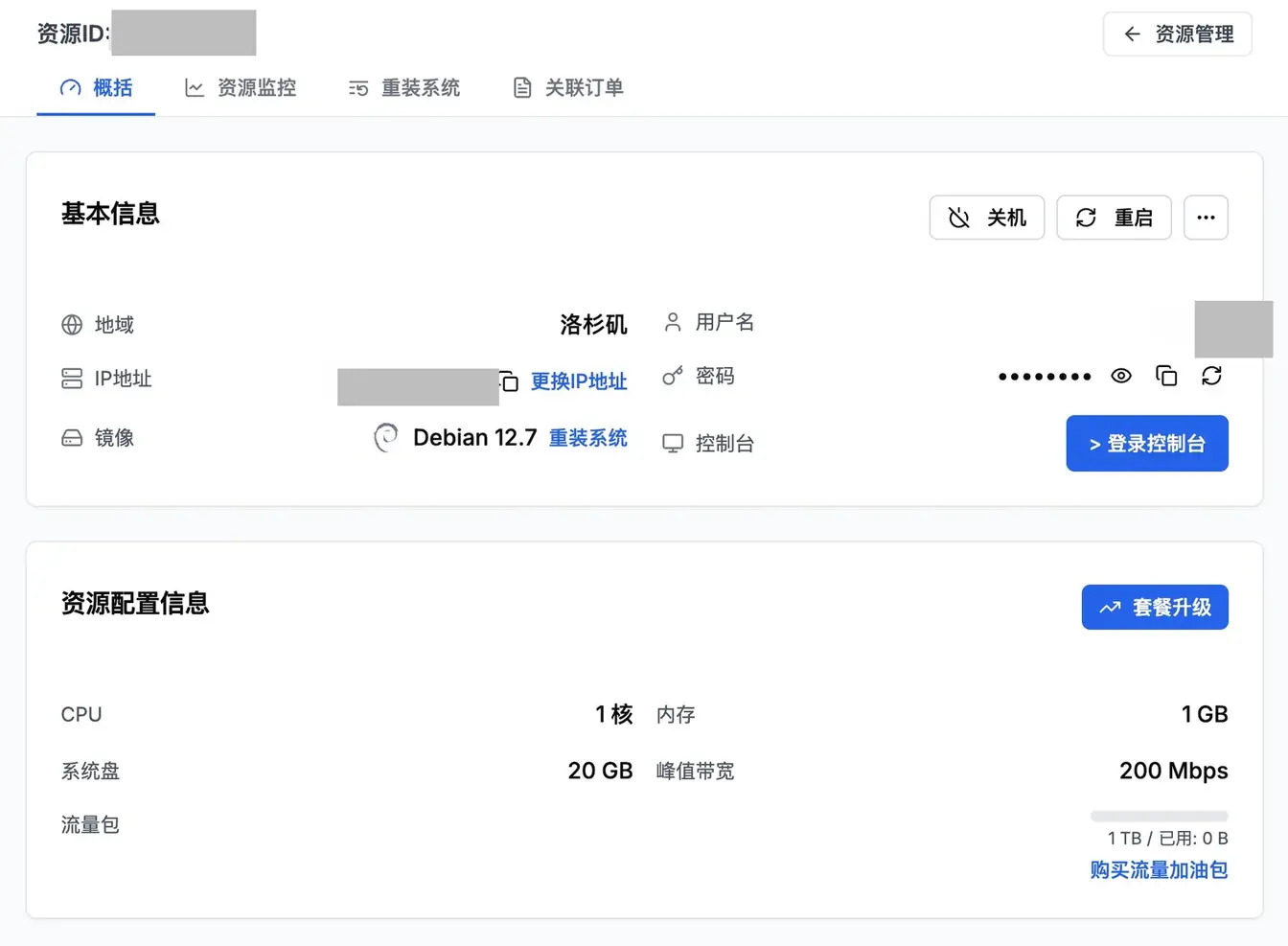
Collect and keep privately:
| Item | Where | Notes |
|---|---|---|
| Public IP, SSH port, username | Provider console | Username may not be root; port may not be 22 |
| Login credential | Password or local SSH key | Type passwords locally—never paste into the AI chat |
| Web rescue (VNC/Console) | Provider console | Needed if SSH breaks |
| OS and usage | Windows / Mac | Web first; add Claude Code later if needed |
| Existing proxy apps/nodes | Local machine | Let the AI detect before overwriting |
New VPS: use the console public SSH. Hardened servers: existing Tailscale / SSH alias.
Open a dedicated config folder and a local agent that can run shell and edit files. Test SSH once (replace angle brackets):
ssh -p <SSH_PORT> <USER>@<VPS_PUBLIC_IP>Verify the host fingerprint, then password. Optionally let the AI help set up key-based login and an alias.
Phase-1 prompt for your local AI:
Read this Claude guide and help configure my PC and VPS for real. Work by stage: detect, implement, accept. Each time tell me the stage, measured results, and the one action I must take.

My setup:
- OS: [Windows / Mac; detect version]
- Usage: [web / Claude Code / both]
- Phone: [iPhone + Shadowrocket / skip for now]
- Egress: [VoyraCloud residential VPS / other VPS / existing node]
- VPS SSH alias or public address: [fill; no password or private key]
- Proxy software: [Clash Verge Rev / other / unknown]
- Working directory: [path or current]

Implement the two desktop routes in this article: Route 1 US-Residential-Reality = VLESS + REALITY primary; Route 2 Voyra-Relay = SS2022 via airport entry to the same VPS. Finish and accept Route 1 first; add Route 2 and Voyra-Auto in section 4. Reuse verified nodes. Check protocol version compatibility and PC→VPS connectivity; when a route fails, find the cause—do not “fix” it by disabling TLS verify or adding DIRECT.

Goals: keep domestic split routing from the guide; send Claude domains and default proxy traffic to the designated VPS egress group with no DIRECT and no airport-only egress; when both routes fail, those requests fail. The browser must not bypass the local proxy to the public net. Core DIRECT for domestic GEOSITE/GEOIP is not the same as the browser bypassing the proxy. Accept browser, CLI, child processes, background, DNS, IPv6, and phone separately—one pass does not cover all.

Start read-only detection and give the shortest plan. Keep accounts, browser profiles, existing configs, and other services. Continuous reversible configs in a clear scope can proceed; before installs, payments, other-browser impact, whole-machine network changes, reboots, or tightening remote entry, explain impact and rollback and wait for my OK.

Never ask me to paste passwords, private keys, tokens, cookies, subscription URLs, or node QR codes into chat. I enter secrets locally; generate configs on disk without echoing, uploading, or writing public logs, and do not read unrelated credentials.

Follow current official docs. If local notes/scripts cited elsewhere are unavailable, do not pretend you read them; generate machine-fit files from this article’s requirements and verify. Say so when you cannot execute, lack permission, or have not accepted yet.

Each stage save config paths, backups, undo steps, and redacted results. Before disconnect tests, save work and keep an independent recovery path—do not cut your only management channel. End with a pass / fail checklist; never call “file generated” the same as “deployed and working”.

Start phase 1: detect local tools, SSH, VPS OS, and existing services only.
Done when: AI confirms environment, SSH, server privileges, and rescue console. Fix auth errors before installing anything.
Step 2: Build Route 1 on the VPS; prepare backup inbound params
Follow the 3x-ui install wiki. Never expose the panel on a public port—listen on 127.0.0.1 only and reach it via SSH tunnel:
# Local tunnel (have the AI fill port and alias)
ssh -N -L 127.0.0.1:<LOCAL_PANEL_PORT>:127.0.0.1:<SERVER_PANEL_PORT> <SSH_ALIAS>
Keep that terminal open; browse http://127.0.0.1:<LOCAL_PANEL_PORT>/<random_path> to log in.
- Create Route 1 (VLESS + REALITY)
Inbounds → Add, desktop primary:
| Field | Route 1 | Notes |
|---|---|---|
| Remark | US-Residential-Reality | Matches desktop primary name |
| Protocol | VLESS | Efficient, light |
| Port | e.g. 443 | Prefer 443 if free; allow TCP |
| Transport | TCP / RAW | With Vision flow |
| Security | REALITY | TLS camouflage without your own cert |
| Target | <verified_domain>:443 | Stable foreign site with TLS 1.3 |
| SNI / Server Names | Same as Target | Never the VPS IP |
| Key pair | Panel-generated | Private key stays on server; public key to client |
| Short IDs | Valid hex | Must match client |
| Flow | xtls-rprx-vision | Cuts TLS-in-TLS fingerprints |
| Client UUID | Dedicated desktop UUID | Same value on import |
Save Route 1 params (IP, 443, UUID, pubkey, Short ID, SNI) in a local private file.
2. Prepare SS2022 inbound (desktop backup + phone share)
For section 4 desktop backup and section 3 phone, create one SS2022 inbound. Desktop relay and phone share the same inbound and client auth. Reuse if it already exists for phone.
| Field | Route 2 | Notes |
|---|---|---|
| Remark | Voyra-Relay (or iPhone-SS2022) | Shared by phone and desktop relay |
| Protocol | Shadowsocks | Mature, light |
| Method | 2022-blake3-aes-256-gcm | Recommended SS2022 |
| Port | e.g. 8443 | Free port; allow TCP/UDP |
| Password / client auth | Panel-generated (or reuse) | Full auth shared; do not truncate |
Save SS2022 params privately too.
Phase-2 prompt:
Continue phase 2. Backup and reuse existing proxies; on a new VPS install a maintained 3x-ui per official docs. Record 3x-ui, Xray, and local Mihomo versions; enable services on boot. Download and review the official install script before running confirmed steps.

Panel listens only on 127.0.0.1; access via local SSH tunnel. Strong auth + random path; close unused public subscription endpoints. Block public access to the panel port during install. Keep working SSH and rescue.

Check REALITY server/client version compatibility, then create or reuse Route 1: US-Residential-Reality, VLESS + TCP/RAW + REALITY, dedicated desktop UUID, flow=xtls-rprx-vision, example TCP 443 (or a confirmed free port). Verify target, allowed serverNames, key pair, pubkey, Short ID, and client params; REALITY private key stays on the server.

Create or verify the SS2022 inbound reused by Route 2: 2022-blake3-aes-256-gcm, 8443, full panel-exported auth. Desktop VLESS UUID and SS2022 auth are two separate credential sets; desktop backup and phone share this SS2022 inbound—do not rotate keys or duplicate the same port.

Security group / host firewall allow only needed proxy ports and protocols. Keep full share params in a local private file—never paste into replies. Deliver tunnel command, Route 1 param file path, service status, listen/port checks. Validate Route 1 with a real proxied request for auth and final egress; leave airport-relayed Route 2 for section 4. TCP open ≠ auth OK ≠ UDP OK.
Done when: panel opens via tunnel only; 443 and SS2022 8443 are up with firewall open.
Step 3: Import Clash Verge and verify egress
Install Clash Verge (or equivalent). Have the AI generate the local YAML.
Phase-3 prompt:
Continue phase 3. Detect Clash Verge Rev, Mihomo version, and free local ports; backup the active config. From local node params generate a complete private YAML—not just a share link or fragment.

Bring up Route 1 US-Residential-Reality with correct VLESS/REALITY/version fields. Use the structure below: loopback only, no LAN, Claude domains + default proxy to the designated node, domestic GEOSITE/GEOIP CN DIRECT per the guide; egress group has no DIRECT and no fail-open to direct. Validate with the real core and guide me to import/enable. Add Voyra-Relay and Voyra-Auto only in section 4—do not reference undefined nodes yet. Keep DNS at core defaults—no extra local DNS listen or DoH.

Check the profile card, effective config, and group selection; send new requests via explicit proxy and via the browser; compare VPS egress and connection logs. Record the real HTTP/mixed port for browser and Claude Code.
Example private YAML (local port 7897, Route 1 on 443):
mixed-port: 7897
bind-address: 127.0.0.1
allow-lan: false
mode: rule
log-level: info
ipv6: false
tun:
  enable: false

proxies:
  - name: US-Residential-Reality
    type: vless
    server: "<VPS_FIXED_PUBLIC_IPv4>"
    port: 443
    uuid: "<DESKTOP_PRIMARY_UUID>"
    network: tcp
    tls: true
    udp: true
    flow: xtls-rprx-vision
    servername: "<REALITY_ALLOWED_DOMAIN>"
    client-fingerprint: chrome
    reality-opts:
      public-key: "<REALITY_PUBLIC_KEY>"
      short-id: "<ALLOWED_SHORT_ID>"
      support-x25519mlkem768: true

proxy-groups:
  - name: Residential-Proxy
    type: select
    proxies:
      - US-Residential-Reality

rules:
  - DOMAIN-SUFFIX,claude.ai,Residential-Proxy
  - DOMAIN-SUFFIX,claude.com,Residential-Proxy
  - DOMAIN-SUFFIX,anthropic.com,Residential-Proxy
  - DOMAIN-SUFFIX,chatgpt.com,Residential-Proxy
  - DOMAIN-SUFFIX,api.ipify.org,Residential-Proxy
  - GEOSITE,CN,DIRECT
  - GEOIP,CN,DIRECT
  - MATCH,Residential-Proxy
Why this shape:
- Domestic split + locked business path: CN sites stay DIRECT; Claude domains and catch-all go through
Residential-Proxy; - Minimal DNS: no custom local
dns:block—use core defaults; still verify DNS separately (egress IP check ≠ DNS safety); - Numeric IPv4 for the VPS `server`: avoids local direct DNS of a VPS hostname at core start. Airport entries keep their subscription fields.
Enable in client:
- Clash Verge Rev → Profiles → new Local Profile, import YAML;
- Right-click → Enable;
- Rule mode; under Residential-Proxy select US-Residential-Reality;
- Turn on System Proxy; keep TUN off.
Live egress check:
Windows PowerShell:
curl.exe --proxy http://127.0.0.1:7897 --noproxy "localhost,127.0.0.1,::1" --max-time 15 https://api.ipify.orgMac:
curl --proxy http://127.0.0.1:7897 --noproxy 'localhost,127.0.0.1,::1' --max-time 15 https://api.ipify.orgReturned IP must match the VPS real egress (with NAT, compare egress not only ingress). Clash connection logs should show the request.
Done when: explicit and system proxy both work with the correct egress. Next: hard cut against direct connect.
Step 4: Stop the browser from bypassing the proxy
With only system proxy, a crashed/stopped proxy or hijacked system settings can let the browser go direct. Harden Chrome as the example.
Phase-4 prompt:
Continue phase 4 for only the browser I name. Backup existing policies; say whether all profiles are affected and which programs outbound limits hit.

Chrome ProxySettings: ProxyMode=fixed_servers, ProxyServer = local port, ProxyBypassList = loopback only—no public bypass. WebRtcIPHandling=disable_non_proxied_udp; NetworkPredictionOptions=2. Reload chrome://policy and verify name, value, source, and status.

Windows: find real chrome.exe; as admin create outbound rules with backup/restore: allow needed loopback (127.0.0.0/8), block non-loopback IPv4 and external IPv6 across real network profiles. Explicit Block beats Allow; do not “block all then allow localhost”. Do not block the proxy core; do not wipe unrelated firewall rules.

Mac: detect outbound filter tools; if none, list options, install/auth, and cost. Prefer tools with per-app/user, destination, and priority (e.g. Little Snitch): allow needed loopback, deny other egress; check more-specific rules and Chrome Helper coverage. Built-in inbound firewall is not a substitute.

Check business DNS vs system queries, IPv6, and local relays. Test proxy-up and intentional bypass; keep reachability controls and filter evidence—DNS failure is not a firewall block, and an unrestricted curl is not a browser test. List uncovered items separately.
Hardening notes:
- Chrome enterprise policy:
WebRtcIPHandling=disable_non_proxied_udp;NetworkPredictionOptions=2; lock ProxySettings to the local proxy port; verify onchrome://policy; - Windows outbound: allow loopback for chrome.exe; block all other non-loopback IPv4/IPv6. If the proxy dies, Chrome’s direct attempts fail at the OS;
- Mac outbound: stock firewall is inbound-only. Use Little Snitch (or similar) for “allow loopback, deny other egress”;
- Scope & tests: policies apply to the Chrome binary. Prove blocks via outbound logs; keep an unrestricted app as a control that still reaches the net.
Done when: policies load; with proxy up Chrome works; with proxy down/bypass, direct attempts are blocked with evidence—no mainland IP leak.
Step 5: Configure Claude Code terminal only if you use it
Web-only users can skip this.
For Claude Code (see network config):
- Install per setup docs if needed;
- Match Windows native PowerShell, WSL, or Mac;
- Persist env in `settings.json` `env`—session
export/$env:is temporary and does not reach background supervisors. If you use a supervisor, also verify its behavior when the proxy is off; otherwise mark N/A.
Phase-5 prompt:
Continue phase 5. Detect Claude Code install state and whether it runs on Windows native, WSL, or Mac; detect the reachable HTTP proxy for that environment. Merge (do not overwrite) env proxy keys in user settings.json; handle case collisions and NO_PROXY public bypasses; backup; start a new session. I log in locally.

Proxy vars must cover CLI, tools, and children. On Windows, a dedicated WSL user with default-deny egress (allow loopback + controlled proxy endpoints only) is OK—do not slap rules on a user that hosts other services. Prove WSL→Windows proxy reachability first; if you relay, limit sources—do not open the proxy to the whole LAN.

On Mac, evaluate a separate normal user with per-user outbound filtering covering all processes, or another verifiable isolation. If a tool only covers known apps, say unknown children are still uncovered. Keep proxy core and admin rights out of Claude’s reach.

Per current official docs, check foreground session, tool requests, and background supervisor separately. A PATH launcher or foreground-only process group is not full background protection. Test the tools and background I actually use. If you cannot cover it, mark incomplete—do not swap launchers to fake completion.
Temporary session examples:
Mac:
export HTTP_PROXY=http://127.0.0.1:7897
export HTTPS_PROXY="$HTTP_PROXY"
export ALL_PROXY="$HTTP_PROXY"
export NO_PROXY=localhost,127.0.0.1,::1
claude
Windows PowerShell:
$env:HTTP_PROXY = 'http://127.0.0.1:7897'
$env:HTTPS_PROXY = $env:HTTP_PROXY
$env:ALL_PROXY = $env:HTTP_PROXY
$env:NO_PROXY = 'localhost,127.0.0.1,::1'
claude
Done when: new sessions send Claude Code + tools via the proxy; env persisted in settings.json; supervisor cutoff verified if used.
Step 6: Save runbooks and prepare disconnect tests
Closing prompt:
Run baseline acceptance against this article: desktop web = section 2 steps 3–4 (plus step 5 if Claude Code); phone = section 3 step 4 on Wi-Fi and cellular; if section 4 airport backup is configured, run its five switch scenarios. Save a full test sheet with Pass / Fail / N/A / Untested, timestamps, and evidence summaries. Distinguish proxy process stopped vs node finally dead; distinguish business requests, DNS, IPv6, CLI tools, and background daemons. Do not touch the live account/subscription; do not restore connectivity by adding DIRECT or disabling the system firewall. Never cut your only management channel for disconnect tests—keep an independent recovery path; leave items I must help verify manually.Have the AI write a private memo (ports, firewall undo commands, backup paths).
3. iOS Shadowrocket on the same VPS
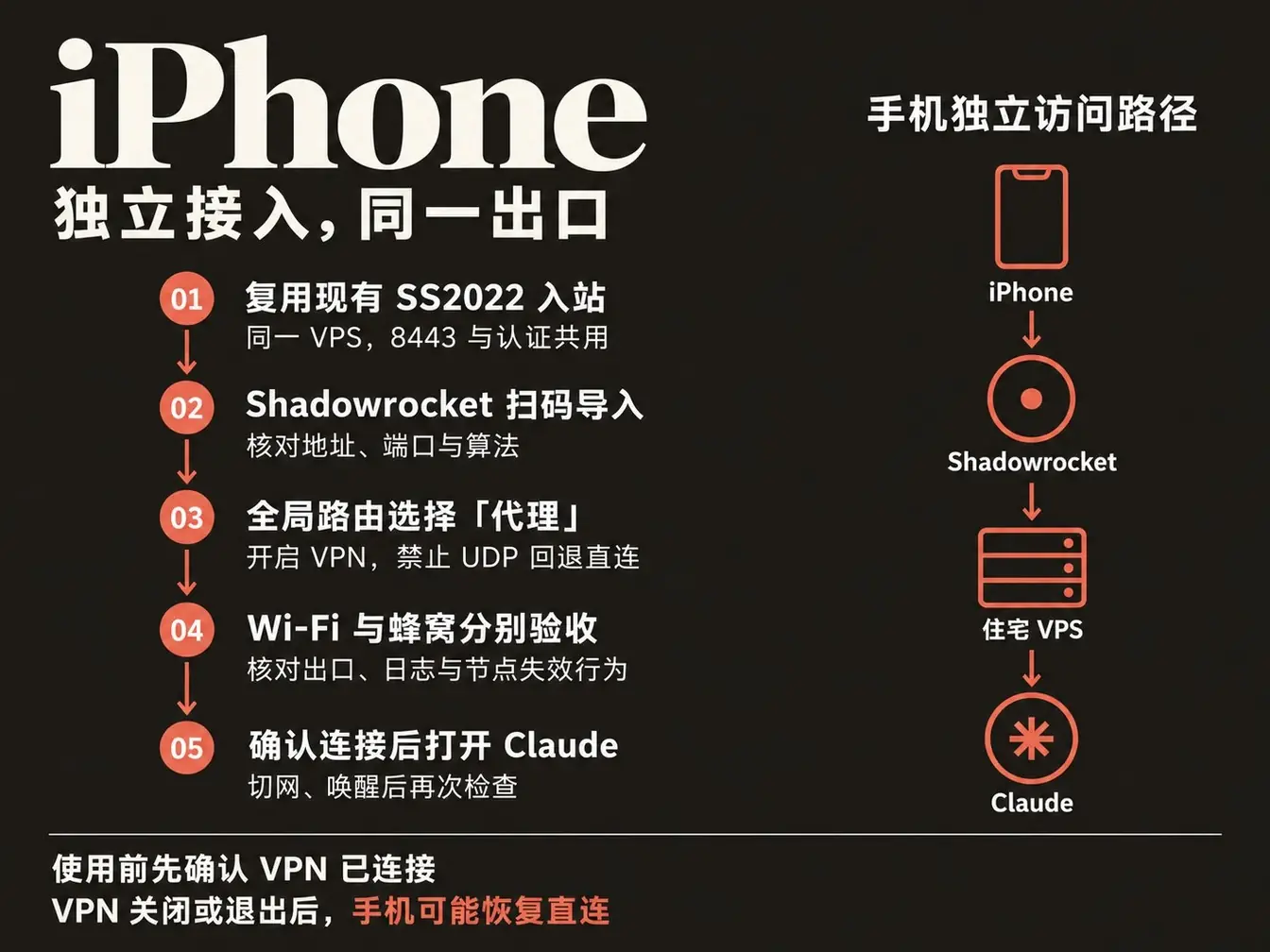
Desktop firewall/proxy does not protect the phone. For Claude App or IAP on iPhone, configure and isolate separately.
Why phone uses SS2022 alone
In practice Shadowrocket on some iOS versions has flaky REALITY handshakes; SS2022 is light, stable, replay-resistant, and battery-friendly on iOS. Phone always uses the VPS 8443 SS2022 inbound.
Step 1: Client + shared SS2022 node
From the US App Store install Shadowrocket (developer Shadow Launch Technology Limited).
If section 2 already created 8443 SS2022, reuse that inbound and the same client auth. Otherwise have the desktop AI create it once and export params.
[!TIP] Traffic counting: desktop relay and phone share credentials, so 3x-ui merges their usage. For phone debugging, read Shadowrocket’s local connection log—not the panel total.
Continue configuring Shadowrocket for my iPhone. Keep the desktop primary unchanged. Prefer reusing the existing SS2022 inbound on the same VPS (2022-blake3-aes-256-gcm, 8443). If it exists, reuse config + client auth for phone and desktop backup—do not recreate the port or rotate keys; if missing, create once and open TCP/UDP on the firewall.

Save the full phone share link and QR in a local private directory; tell me the path only—never paste keys, QR, or links into chat. Export address must be a public entry the phone can reach.

Guide me click-by-click for the current Shadowrocket UI; when you cannot touch the phone, say exactly where to tap. After import, walk through global proxy, DNS, disable UDP-fallback-to-direct, and on-demand checks; accept Wi-Fi, cellular, Claude App send/receive, and simulated node failure carefully.
Step 2: Scan import + global routing
- Open 3x-ui via SSH tunnel; open the shared SS2022 client QR;
- Shadowrocket → scan from the top-left;
- Confirm type Shadowsocks, method 2022-blake3-aes-256-gcm, port and public IP;
- Home → Global Routing = Proxy for first debugging;
- Connect; allow the VPN profile when iOS prompts.
Step 3: DNS and phone protection boundary
- In Shadowrocket settings, turn off options that fall back to direct when UDP is unsupported;
- Phone boundary: consumer VPN is not MDM. If you disconnect, power-save kills it, or it crashes, the phone goes to normal cellular/Wi-Fi direct. Rule: confirm Shadowrocket is connected before opening Claude;
- If you later switch Global Routing to Config, use a clean rule set: no DIRECT / airport-direct ahead of protected business rules (except needed loopback).
Step 4: Accept on Wi-Fi and cellular
On Wi-Fi, then again on cellular with Wi-Fi off:
- Safari → https://api.ipify.org — egress must match VPS;
- Shadowrocket connection log shows the SS2022 node;
- Simulate dead node: copy the node, point port at a closed port, keep VPN on, request again—expect timeout, not local direct;
- Lifecycle: lock/unlock, Wi-Fi↔cellular, background wake, VPN restart; only paths via the VPS with no direct pass. Untested packet captures stay “Untested”; observed direct = Fail;
- Then log into Claude App and send a test message.
4. Add Route 2 + primary-first automatic fallback (advanced dual insurance)
Section 2 already brought up US-Residential-Reality. If your direct path to the offshore VPS is rock solid, one route is enough.
Mainland broadband to offshore VPS can still hit backbone jitter, peak packet loss, or temporary blocks. This section adds Voyra-Relay and a primary-first fallback group.
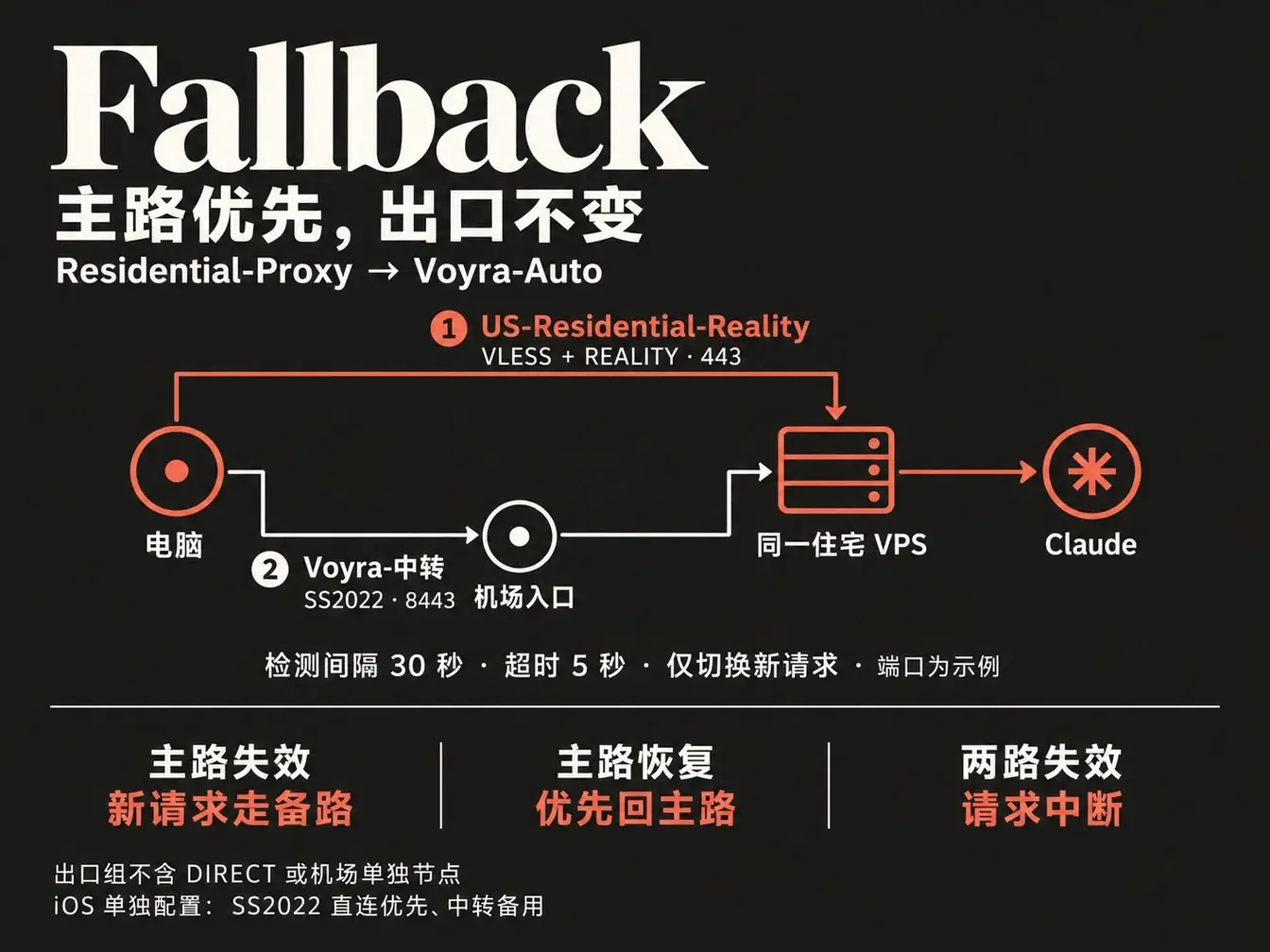
Route 1 (default): PC → VPS:443 / VLESS + REALITY → Claude
Route 2 (backup):  PC → airport entry → same VPS:8443 / SS2022 → Claude

Daily pick: Residential-Proxy → Voyra-Auto
Auto candidates: 1) US-Residential-Reality  2) Voyra-Relay
Iron rule: the airport node is only a hop to your VPS. Final egress must be that dedicated residential VPS. If fallback lands on an airport datacenter IP, the whole shield is wasted (shared airport IPs get banned together). The candidate group must never include DIRECT or airport-only exits.
Step 1: Pick a usable airport entry
From an existing subscription, pick a low-latency node (no need to buy a new airport for this guide):
- Airport speed tests ≠ ability to reach your VPS proxy port—verify the real chain locally;
- Protocol need not match the VPS (Trojan / SS / Hysteria2 are fine);
- Name it
Airport-Entryin the local config.
Step 2: Merge both nodes in Clash Verge and enable fallback
- Three node roles:
- US-Residential-Reality: Route 1 direct, VLESS + REALITY, 443;
- Voyra-Relay: Route 2, SS2022, 8443,
dialer-proxy→ Airport-Entry; - Airport-Entry: front hop only—never in the final egress select group.
2. Append Route 2
proxies:
  - name: US-Residential-Reality
    type: vless
    # ... Route 1 unchanged ...

  - name: Voyra-Relay
    type: ss
    server: "<SAME_VPS_FIXED_PUBLIC_IPv4_AS_ROUTE_1>"
    port: 8443
    cipher: 2022-blake3-aes-256-gcm
    password: "<FULL_SS2022_AUTH>"
    udp: true
    dialer-proxy: Airport-Entry  # must match the imported airport node name exactly
dialer-proxy: Airport-Entry on Voyra-Relay means: PC → airport → VPS:8443; the VPS core still egresses to the target.
3. Primary-first fallback groups
proxy-groups:
  - name: Residential-Proxy
    type: select
    proxies:
      - Voyra-Auto

  - name: Voyra-Auto
    type: fallback
    proxies:
      - US-Residential-Reality  # order matters: primary first
      - Voyra-Relay              # takes over when primary fails
    url: https://cp.cloudflare.com/generate_204
    interval: 30
    timeout: 5000
lazy: false- Voyra-Auto always prefers Route 1 while healthy;
- Every 30s health probe; on Route 1 timeout (5000 ms), new connections use Voyra-Relay; egress stays the residential VPS;
- When Route 1 recovers, prefer it again;
- Both down → hard fail—never mainland DIRECT or airport datacenter egress.
4. Enable and verify
- Enable the merged profile with no errors;
- Rule mode; Residential-Proxy → Voyra-Auto;
- Confirm candidate order primary then relay; active node = Route 1;
- Egress check: logs on Route 1, IP = residential VPS.
Step 3: iOS Shadowrocket “Proxy Through” + fallback group
Phone groups do not sync from desktop.
- Keep the direct SS2022 node as Voyra-Direct (Proxy Through empty);
- Duplicate as Voyra-Relay; set Proxy Through to your airport node;
- Manually select Voyra-Relay, Global Routing = Proxy; Safari IP check must still show the residential VPS, never the airport IP;
- Add a fallback group Voyra-Auto:
- Candidates: Voyra-Direct first, Voyra-Relay second;
- Test URL https://cp.cloudflare.com/generate_204; interval 30s; timeout 5s (or 5000 if ms);
Routing: keep domestic split; near the top add DOMAIN-SUFFIX rules for claude.ai / claude.com / anthropic.com → Voyra-Auto; FINAL → Voyra-Auto; switch to Config.
Step 4: Let the local AI implement and test the chain
Per section 4, add airport-relay backup for my existing residential VPS; keep that VPS as final egress. Existing airport entry: [local config name; no subscription/auth]. Scope: [desktop / iPhone / both].

Backup the active config first. Desktop keeps Route 1 US-Residential-Reality (VLESS + REALITY); Route 2 Voyra-Relay reuses full SS2022/8443 params with dialer-proxy: Airport-Entry. Import full airport protocol params from private config; verify it can reach the VPS Route 2 port; do not disable TLS verify. On phone, copy the section 3 SS2022 node for the relay copy and guide Proxy Through.

Desktop Residential-Proxy → Voyra-Auto with candidates 1) US-Residential-Reality 2) Voyra-Relay; prefer 1, use 2 only when 1 is down, prefer 1 again when recovered. Phone builds its own direct-first group. Only paths that reach the VPS directly or via airport to the same VPS. No DIRECT or airport-only nodes in the egress group; check loops, rules that bypass fallback, DNS refs, and entry resolve/subscription update deps.

Manually test both paths, then in an isolated/copied test config simulate primary fail, both fail, and primary recover. Do not stop the live VPS or cut your only control channel. Check actual node, connection chain, and final egress for new requests; phone on Wi-Fi and cellular separately.

Document how static airport entry copies get updated; if using a provider, limit real candidates and verify post-update config. Validate syntax with the local core; save rollback after enable. Mark unfinished phone UI / disconnect tests as not accepted—do not count desktop results for phone.
Five switch scenarios:
| Scenario | Pass criteria |
|---|---|
| 1. Manual Route 1 US-Residential-Reality | New request OK; VLESS + REALITY; egress = residential VPS |
| 2. Manual Route 2 Voyra-Relay | New request OK; SS2022 via airport to VPS; egress still residential VPS |
| 3. Simulate primary fail (change Route 1 port in test config) | Outer still Voyra-Auto; after health check new requests take Route 2; egress unchanged |
| 4. Both residential routes fail | Hard fail—no mainland DIRECT or airport datacenter egress |
| 5. Restore Route 1 and wait for health | Auto prefers Route 1 again; new requests on direct primary |
*Note:* Mihomo fallback selects for new requests after health checks. In-flight requests during a switch may error—refresh is normal. A reachable probe URL does not prove every Claude API or UDP path.
5. What Taipei timezone and English UI language actually do
People often say “set Taipei timezone + English and you won’t get banned.”
Neither is proven to lower ban risk, and neither is a subscription prerequisite—but you can set them for comfort. Taipei timezone does not change your real location or turn a US node into Taiwan egress. It is mostly my preference to reduce weird gaps between browser fingerprint and network egress. Optional:
- Windows: Settings → Time & language → Language & region — add English on top (keep Chinese IME); under Date & time turn off automatic timezone and pick a zone that includes Taipei (UTC+08:00); keep clock sync on;
- Mac: System Settings → General → Language & Region — add English; under Date & Time turn off location-based timezone and set city to Taipei.
Closing:
Whole path in one line: subscription method + residential IP + relay proxy + Taipei timezone + English primary language + restrict browser WebRTC—and try to avoid Claude Desktop, which is harder to lock down. If you want extra margin, enable the proxy TUN mode while using Claude.